

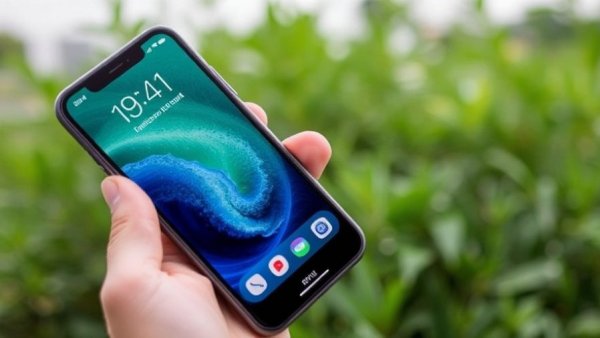
Unlocking Your iPhone Duo: Essential Settings for Optimal Use
The iPhone Duo has quickly captured the attention of tech enthusiasts eager to explore Apple’s foldable technology. However, this innovative device demands a slight adjustment period, particularly when it comes to settings that can truly enhance your user experience. Below, we delve into some key features and settings adjustments to help you navigate and excel with your new device.
1. Making Touch ID Work for You
While the iPhone Duo may seem like a futuristic device, it dials back certain features, such as Face ID, which you may have become accustomed to on other models. To ease this transition to using Touch ID, consider registering multiple fingerprints. This might appear tedious initially, but it can simplify unlocking and authenticating your device from various angles. To start, go to Settings > Touch ID & Passcode > Add a Fingerprint. This way, whether you're holding the Duo vertically or horizontally, your finger will always be ready to authenticate smoothly.
2. Leverage Your Apple Watch
If you're already equipped with an Apple Watch, utilizing this feature can significantly streamline your experience. By enabling the “Unlock with Apple Watch” setting, you bypass the need to manage Touch ID altogether. This means your watch can unlock your Duo seamlessly when worn closely. To set this up, navigate to Settings > Touch ID & Passcode > Unlock with Apple Watch and enjoy the convenience it offers, especially during busy moments.
3. Enhancing Usability with Rest Finger to Open
For those who favor shortcuts, enabling the “Rest Finger to Open” option can lead to faster access. This accessibility feature allows users to unlock the device simply by resting their finger on the Touch ID sensor, rather than pressing down. Discover which method suits you best by toggling this setting on and off to assess its impact on your day-to-day use. Access it in Settings > Touch ID & Passcode > Rest Finger to Open.
4. Adjusting Volume Controls for Flexibility
One popular feature among Duo users is adjusting the default behavior of volume controls. By turning off the “Fixed Volume Controls,” the device adapts to its orientation, allowing for a more natural experience. This means that regardless of how you hold the Duo, the volume up and down buttons will correspond correctly. To enable this, head over to Settings > Sounds and Haptics. This small tweak can significantly enhance usability, making audio adjustments feel seamless.
5. Avoiding Misplaced App Icons
As users explore new layouts with the iPhone Duo’s unique screen, it’s easy for app icons to get disorganized. To help keep control, users can enable the “Arrange Apps” feature to easily drag and drop apps into preferred folders or home screens. This not only saves time but streamlines access to frequently used apps. Simply tap and hold any app until they all start to jiggle, then move them into your desired configuration.
Conclusion: Maximize Your iPhone Duo Experience
The iPhone Duo is an exciting advancement in smartphone technology, offering flexibility and customization that appeals to both casual users and tech enthusiasts alike. Adjusting these settings will help you take full advantage of the Duo’s capabilities, ensuring that it not only meets but exceeds your expectations. As you familiarize yourself with this innovative device, remember that the satisfaction of a personalized setup is just a few adjustments away. Harness the latest tech trends at your fingertips and explore the new frontiers of digital transformation with the iPhone Duo.





Write A Comment